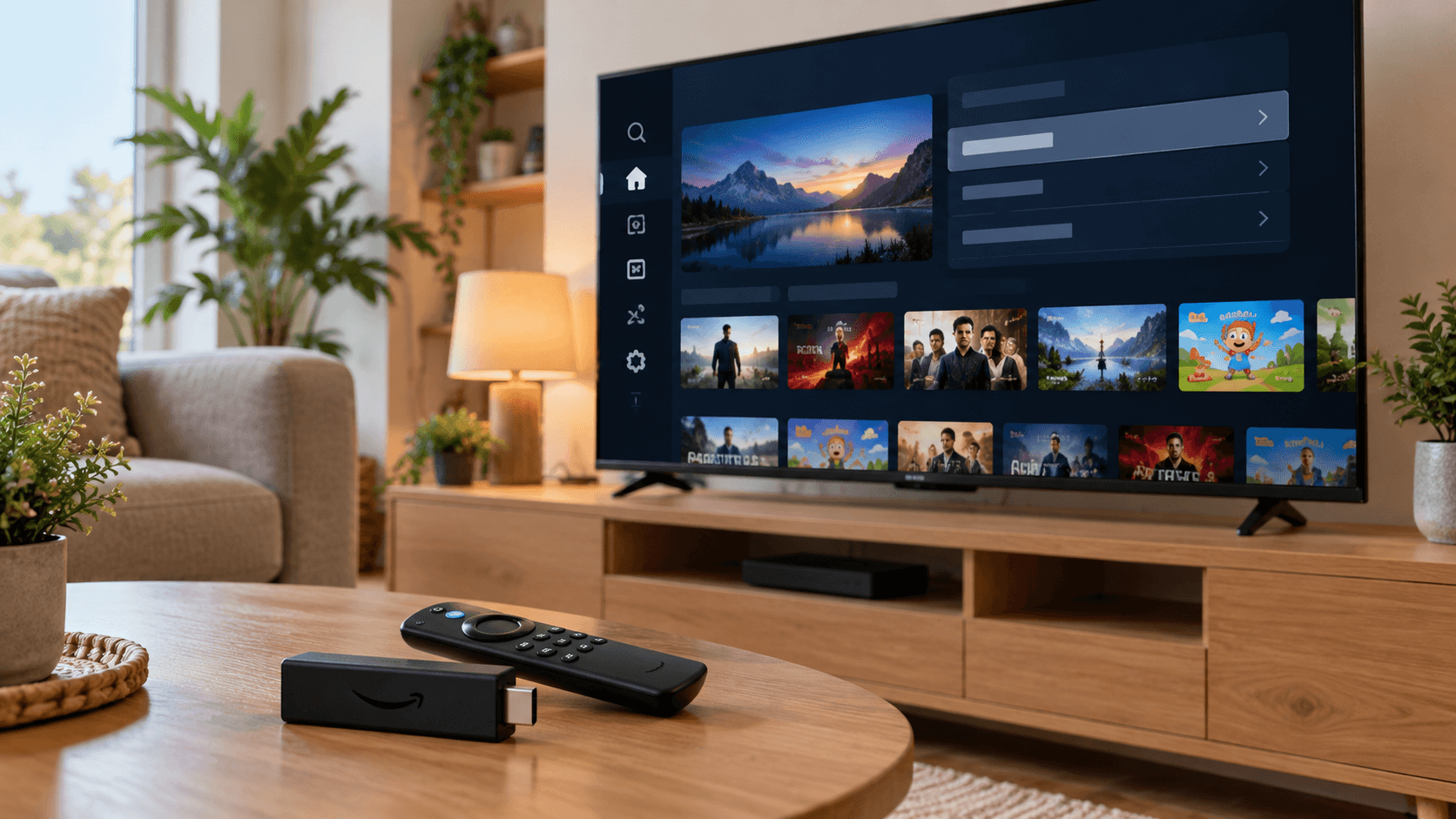
The Amazon Fire TV Stick is the most popular way to watch IPTV on a normal TV. It is cheap, plugs straight into an HDMI port and runs the best player apps. The only catch is that most IPTV players are not in the Amazon Appstore, so you need to allow your stick to install apps from elsewhere first.
This guide walks you through the whole process in about ten minutes: unlocking developer options, installing the Downloader app, adding a player app, logging in with your REVO IPTV details and tuning the stick for smooth playback. Each step is written for the current Fire TV menus, and we flag where older or newer models differ.
What you need before you start
Have these ready and the setup will go smoothly:
- A Fire TV Stick, Fire TV Stick 4K, 4K Max, Lite or Fire TV Cube, connected to your TV and the internet.
- Your subscription details: username, password and server URL. They are in your welcome message after you order or start a free trial.
- An internet connection of at least 10 Mbps for Full HD, or around 25 Mbps for 4K.
- Ten minutes and the Fire TV remote.
Check your Fire TV model first
Most Fire TV Sticks run Fire OS, which is based on Android and can install apps from outside the Appstore. Amazon has started releasing devices on its newer Vega OS, beginning with the Fire TV Stick 4K Select, and these only run apps from the Amazon Appstore. To check, go to Settings › My Fire TV › About and look at the device name and software version. If your model runs Vega OS, use a player app from the Appstore if one is available in your country, or contact our support team for the best option.
Step 1: Turn on developer options
On current Fire TV software, the developer menu is hidden until you unlock it. This is a normal Amazon setting and does not void your warranty.
- From the home screen, open Settings (the gear icon on the right).
- Select My Fire TV, then About.
- Highlight the first item, your device name (for example Fire TV Stick 4K), and press the select button on the remote seven times.
- A message confirms that you are now a developer.
- Press back once. Developer Options now appears in the My Fire TV menu.
On some older sticks, Developer Options is already visible under My Fire TV, so you can skip straight to the next step.
Step 2: Install the Downloader app
Downloader is a free app in the Amazon Appstore that lets you download files from a web address. It is the standard way to install player apps on a Fire TV.
- Go back to the home screen and select Find, then Search.
- Type Downloader and select it from the results. The app has an orange icon and is made by AFTVnews.
- Select Get or Download and wait for it to install.
- Open Downloader once and allow it to access files if it asks.
Step 3: Allow Downloader to install apps
Fire TV only lets you approve apps from unknown sources one app at a time, so this step comes after Downloader is installed.
- Open Settings › My Fire TV › Developer Options.
- Select Install unknown apps.
- Find Downloader in the list and switch it to ON.
Older software shows a single switch called Apps from Unknown Sources instead. Turn it on and the result is the same.
Step 4: Choose and install a player app
REVO IPTV works with any player that supports Xtream Codes or M3U logins. These are the two we recommend most on Fire TV, and you can compare more on our recommended apps page:
- TiviMate: the best TV-style guide on Fire TV, with favourites, catch-up and recording. The free version covers the basics, and Premium adds extras such as multiple playlists and recording. Premium is bought through the TiviMate Companion app on an Android phone.
- IPTV Smarters Pro: simple to set up and familiar to most users, with live TV, films and series in separate sections. A good choice if you want something straightforward.
First search for the app by name in the Amazon Appstore, as some players are listed there in certain countries. If it is not available, open Downloader, type the download address from the app developer’s official website into the URL box and select Go. When the download finishes, select Install, then Done. Downloader will offer to delete the installation file afterwards; choose Delete to save space.
Only install apps from the developer’s official website or a link supplied by our support team. Modified copies of popular apps from unknown sites can contain malware.
Step 5: Log in with your REVO IPTV details
Open the player app. The exact wording varies, but the process is the same in every app:
- Choose to add a playlist or user, and select Xtream Codes (sometimes called Xtream Codes API or Xtream login).
- Enter a name for the playlist, for example REVO.
- Type your username and password exactly as they appear in your welcome message. Both are case-sensitive.
- Enter the server URL, including the http:// part and any port number after a colon.
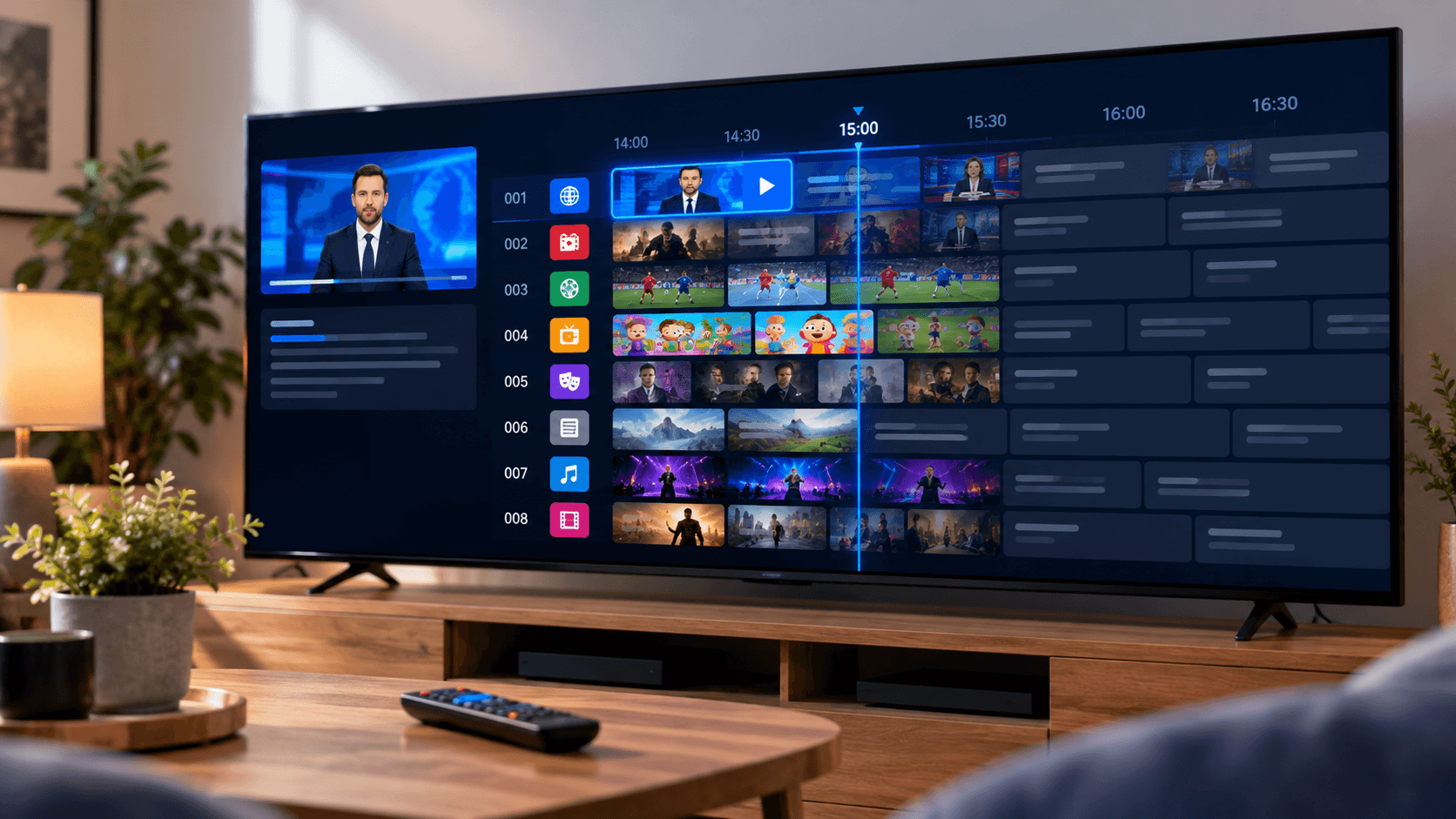
- Select Add or Login. The app loads your channels, films, series and programme guide.
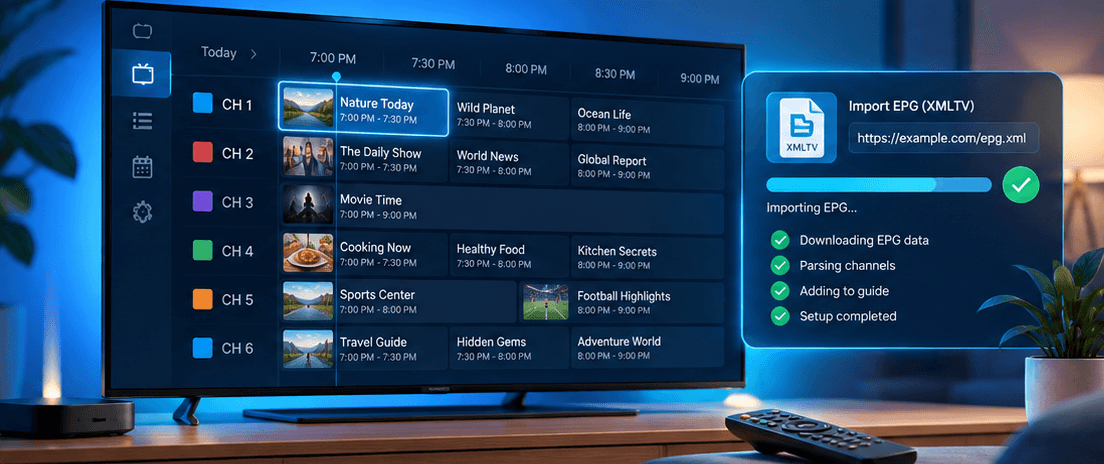
Xtream Codes is the better option because it loads the programme guide, catch-up and on-demand library automatically. Use the M3U link only if your app does not support Xtream logins. If the guide stays empty after logging in, our explainer on how an IPTV EPG works explains how to add it manually.
Step 6: Tune your Fire TV for smooth playback
A few minutes in the settings makes a noticeable difference, especially for live sport:
- Turn on Match Original Frame Rate in Settings › Display & Sounds › Display. Live TV in Europe is broadcast at 50 frames per second, and matching it removes judder on camera pans.
- Use a wired connection if you can. Amazon’s Ethernet adapter plugs into the stick’s power port and removes most Wi-Fi problems.
- If you stay on Wi-Fi, connect to your router’s 5 GHz network rather than 2.4 GHz.
- Clear the player’s cache now and then in Settings › Applications › Manage Installed Applications.
- Uninstall apps you never use. Fire TV Sticks have limited storage and memory, and a crowded stick slows down.
- Pin your player app to the home screen so it is one click away.
Planning to watch a lot of football? Our guide to watching the football season on IPTV covers match-day settings in more detail.
Common Fire TV problems and how to fix them
Most setup problems come down to a handful of causes.
Developer Options does not appear
Make sure you pressed select on the device name itself, at the top of the About screen, seven times in a row. If it still does not appear, your stick may run Vega OS (see the model check above), which does not support installing apps from other sources.
The app will not install
Check that Downloader is switched on under Install unknown apps. If the install fails part-way, your storage may be full: remove unused apps and clear Downloader’s files, then try again.
Login fails or shows "invalid credentials"
Retype the username, password and server URL carefully, watching for capital letters, extra spaces and the port number. Copying errors cause almost every failed login. If the details are definitely correct, contact support, as the account may need activating.
Channels buffer or freeze
Run a speed test on the stick itself, switch to Ethernet or 5 GHz Wi-Fi and restart both the router and the stick. Our full guide to fixing IPTV buffering works through twelve fixes in order.
Conclusion
Setting up IPTV on a Fire TV Stick takes about ten minutes: unlock developer options, install Downloader, approve it for unknown apps, install a trusted player and log in with your Xtream Codes details. Add a wired connection and frame rate matching, and the stick is ready for anything from films to live football.
Not a customer yet? Request a free trial and follow this guide to test REVO IPTV on your own Fire TV before choosing a plan. If you get stuck at any step, message our support team with your Fire TV model and a photo of the screen, and we will help you finish the setup.
Frequently asked questions
Is it safe to turn on developer options on a Fire TV Stick?
Yes. It is a standard Amazon setting that lets you install apps from outside the Appstore. Stay safe by installing apps only from official developer websites or links from our support team.
Which Fire TV Stick is best for IPTV?
Any current Fire OS model works. The Fire TV Stick 4K and 4K Max have more memory and faster Wi-Fi, which helps with live sport and large channel lists. Check that the model runs Fire OS rather than Vega OS before buying.
Should I use Xtream Codes or an M3U link?
Use Xtream Codes whenever your app supports it. It loads the programme guide, catch-up and the on-demand library automatically, while an M3U link usually needs the guide added separately.
Can I use the same subscription on several Fire TV Sticks?
Yes, you can install it on as many devices as you like. The number of streams playing at the same time is limited by your plan’s connections, explained in our guide to how many IPTV connections you need.
Do I need a VPN on a Fire TV Stick?
It is not required for setup. Some users find a VPN helps if their internet provider slows down video traffic at busy times. Test with and without one at the same time of day to see if it makes a difference.