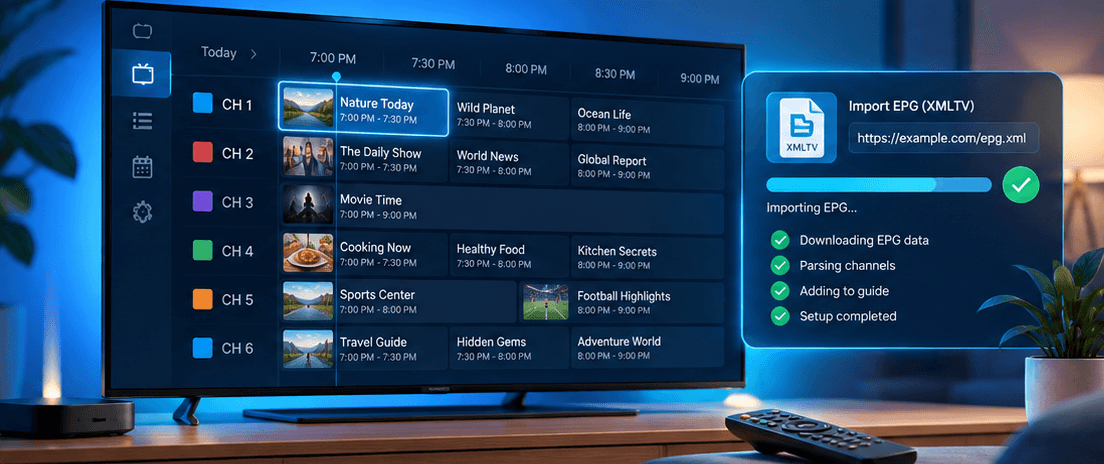
If you use IPTV Extreme on Android, importing an EPG is the step that turns a plain list of channels into a proper TV guide with programme titles, times and descriptions. The process confuses many people because the guide data lives in a separate file from your playlist. This tutorial walks through the whole job, from finding the right link to fixing a guide that refuses to load. It works with any provider, although the examples use the setup details that REVO IPTV subscribers receive with their account.
You will need about ten minutes, the app installed and your playlist already working. If channels do not play yet, sort that out first: the guide only becomes useful once the streams themselves are working.
What you need before you start
Gather these four things before you open the app:
- IPTV Extreme or IPTV Extreme Pro installed on an Android phone, tablet, Android TV box or Fire TV device.
- A working playlist, either an M3U link or Xtream Codes login details.
- Your EPG link, usually an XMLTV address ending in .xml or .xml.gz.
- A stable connection, since the first download of a full guide can be several megabytes.
New to the idea of a programme guide? Our explainer on what an EPG is and how it works covers the background in plain English and will make the steps below easier to follow.
Step 1: Find your EPG (XMLTV) link
Your provider supplies the guide separately from the channel list, and it normally arrives in your welcome email alongside your playlist details. How you find it depends on the type of login you have.
If you use Xtream Codes login details
Xtream-based services generate the guide automatically. The link usually follows a fixed pattern: your server address, then xmltv.php, then your username and password as parameters. For example: http://server-address:port/xmltv.php?username=YOUR_USER&password=YOUR_PASS. Replace the placeholders with your own details exactly as they appear in your welcome message, paying attention to capital letters.
If you use an M3U playlist
Look for a line in your welcome email labelled EPG, XMLTV or Guide URL. Some M3U playlists also include the guide link in their very first line, in a field called url-tvg. If you cannot find a link anywhere, ask support; most providers can send it within minutes.
Tip: open the link in a browser on your computer before adding it to the app. If it downloads a file or shows a page of structured text, the link works. If you see an error, check for typing mistakes first, because a single wrong character is the most common reason a guide fails to load.
Step 2: Add the EPG source in IPTV Extreme
Menu names change slightly between versions of the app, but the process is the same in every recent release:
- Open IPTV Extreme and go to the main menu or settings screen.
- Find the EPG section. In most versions it is labelled EPG, EPG Sources or TV Guide.
- Choose the option to add a new source and select URL as the source type.
- Paste your XMLTV link and give the source a name you will recognise, such as your provider.
- Save, then return to the EPG section and choose the option to update or download the guide.
The first download can take a minute or two depending on the size of the guide and the speed of your connection. Let it finish completely before you open the channel list, otherwise you may see a half-populated guide and assume something is wrong.
Linking the EPG to your playlist
Some versions ask you to choose which playlist the guide belongs to, while others let you enter the EPG link while editing the playlist itself. If you have more than one playlist, make sure the guide is attached to the right one; otherwise the app looks for programme data in the wrong place and every channel appears empty.
Step 3: Check that channels are matched correctly
When the download finishes, open a handful of channels and look at the guide. If programme names appear, you are done with the hard part. If most channels show "No information", the problem is almost always channel matching.
Every channel in an XMLTV file has an ID, and each channel in your playlist carries a matching tag called tvg-id. The app connects the two by comparing these IDs. When they do not match, because the provider renamed a channel or because the guide comes from a different source, the slot stays empty.
- Use the EPG link supplied by your own provider rather than a generic one; its IDs are designed to match your playlist.
- If only a few channels are blank, use the app’s manual mapping option, where available, to assign the correct guide entry to each one.
- Report persistent gaps to support with the exact channel names, so the IDs can be corrected at source for everyone.
Step 4: Fix the time offset
If programmes appear but are an hour or more out, the guide is being displayed in the wrong time zone. XMLTV files record a time offset for every programme, but a device with the wrong time zone, or a provider publishing times in UTC, can still produce a shift.
- First, confirm that your device’s date, time and time zone are all set to automatic.
- Then look for an EPG time shift or offset setting in the app’s EPG section and adjust it in one-hour steps until the guide matches what is on screen.
- Revisit the setting when the clocks change for daylight saving time if your guide drifts again.
Step 5: Keep the guide up to date automatically
Guide data only covers a limited window, often a few days ahead. To avoid running out of listings:
- Enable automatic EPG updates if your version offers them, ideally once a day or each time the app starts.
- Avoid updating several times an hour; large guides take time to process and frequent refreshes slow down older devices.
- Clear old guide data now and then if the app starts to feel sluggish.
Troubleshooting common EPG problems
Most issues fall into one of three patterns. Here is how to tackle each.
The guide is completely empty
Check the link in a browser, confirm it is attached to the correct playlist and run a manual update. If the file is compressed (.gz) and your version of the app struggles with it, ask your provider whether an uncompressed .xml link is available.
The app freezes when I open the guide
Very large guides can overwhelm devices with little memory. Ask whether your provider offers a smaller, region-specific EPG, or reduce the number of days the app keeps. Freezing during playback is a different issue altogether; our guide to fixing IPTV buffering covers that in detail.
The guide worked yesterday and is blank today
The guide window has probably expired because automatic updates are switched off, or the provider’s guide server was briefly unavailable. Run a manual update first. If that fails, wait an hour and try again before contacting support.
Using more than one EPG source
Some viewers combine their provider’s guide with a second source to cover a few international channels. IPTV Extreme can usually hold several EPG sources at once, but more is not always better. Each extra source adds download time, uses memory and increases the chance of two guides disagreeing about the same channel.
If you do add a second source, keep your provider’s guide as the main one and only map the handful of channels the extra source genuinely improves. Remove any source that has not added useful listings after a week.
A two-minute EPG health check
Once everything is set up, run this quick check whenever the guide looks wrong. It catches most problems before they become frustrating:
- Open a news channel: the current programme should match what is on screen right now.
- Scroll forward two days: listings should still be there, confirming the guide is updating.
- Check one channel from each country or category you watch, since gaps often affect a single group.
- Note the last update time in the EPG settings, if your version of the app shows it.
Is IPTV Extreme the right app for you?
IPTV Extreme is a solid choice on Android thanks to its flexible playlist and guide options, but it is not available on every platform. If you watch on a Samsung or LG television, compare the alternatives in our roundup of the best Smart TV player apps, or browse the full list of supported apps and devices to find the right player for each screen in your home.
Conclusion
Importing an EPG in IPTV Extreme comes down to three things: the right XMLTV link, correct channel matching and the right time offset. Get those in place and the guide becomes the fastest way to find out what is on. If you are still stuck after following these steps, contact our support team with a screenshot of your EPG settings and we will help you get it working.
Frequently asked questions
What EPG format does IPTV Extreme support?
It works with XMLTV guide data, the standard format used by most IPTV providers, delivered either as a plain .xml file or as a compressed .xml.gz file.
Can I use a free EPG with a paid IPTV playlist?
You can, but channel IDs often will not match, which leaves gaps in the guide. The EPG supplied by your provider is almost always the more reliable option.
How often should IPTV Extreme update the EPG?
Once a day is enough for most people. Guides usually cover several days ahead, so more frequent updates add load to your device without much benefit.
Why does my EPG show the wrong times?
Usually because of a time zone mismatch between your device, the guide data and the app. Set your device time to automatic, then use the app’s EPG offset setting to correct any remaining difference.