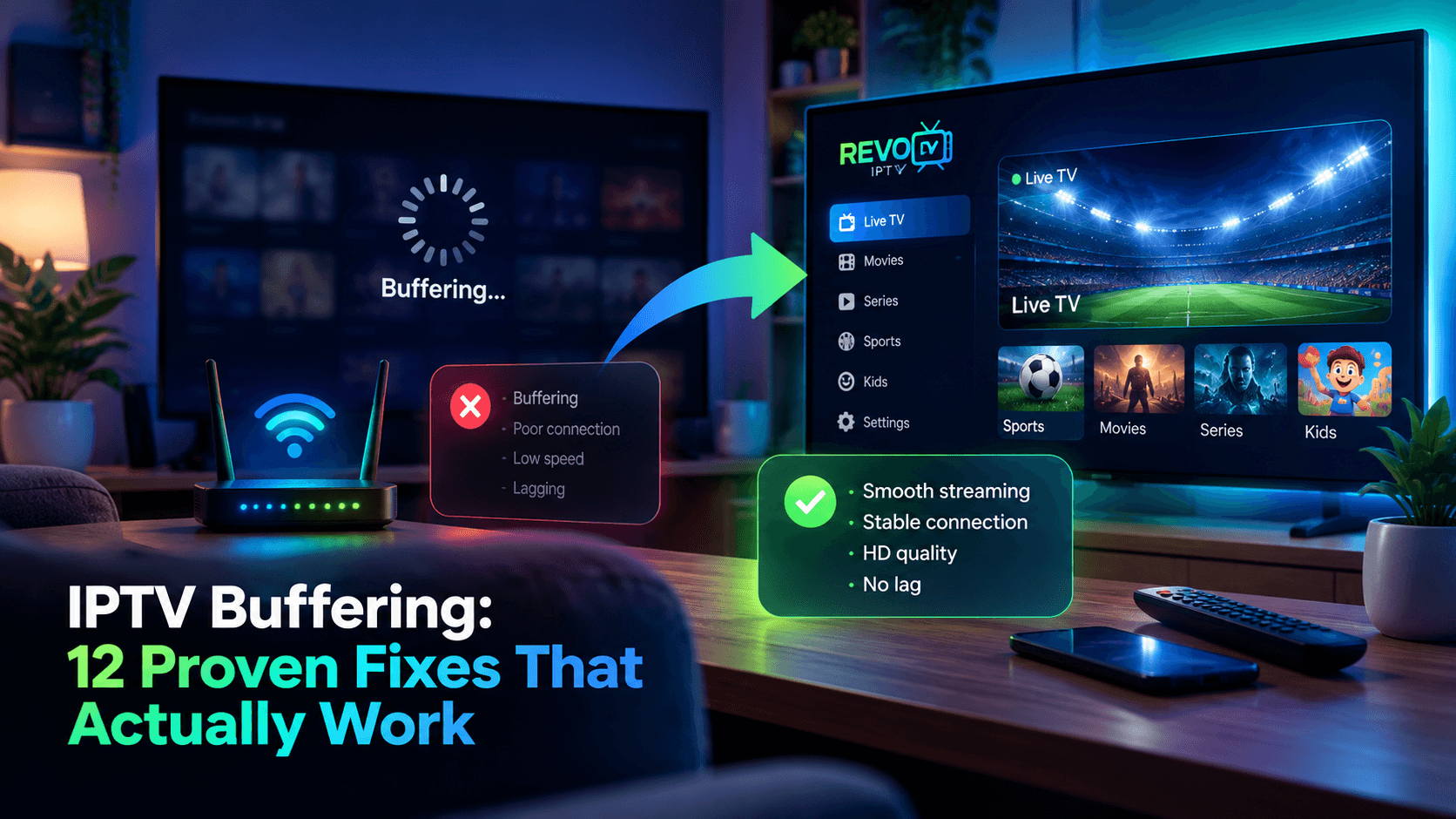
Nothing ruins a match or a film faster than a spinning wheel. IPTV buffering is the most common complaint on every service, and the frustrating part is that the cause usually sits somewhere between the server and your sofa rather than in one obvious place. This guide works through twelve fixes in a logical order, quickest checks first, so you can find the real cause instead of guessing. The steps apply to any provider, and they are the same ones the REVO IPTV support team walks customers through every day.
Before you start, note when the buffering happens. Is it every channel or just one? Constant, or only in the evening? On every device, or only the TV? Those answers point straight to the likely cause and will save you time.
Why IPTV buffers in the first place
A live stream arrives as a continuous flow of small video segments. Your player keeps a short buffer, a few seconds of video stored in advance, so that small delays go unnoticed. Buffering happens when segments arrive more slowly than the player uses them and that buffer runs dry. Three things can slow the flow:
- Your home network: weak Wi-Fi, an overloaded router or too many devices online at once.
- Your internet provider: congestion at peak times, or deliberate throttling of video traffic.
- The service: an overloaded server or a problem with one particular channel source.
The fixes below tackle each area in turn, starting with the ones that take seconds.
Quick fixes (5 minutes)
Start here. These four steps solve a surprising share of buffering problems.
1. Restart your router and streaming device
Unplug both for 30 seconds. Power the router back on first and wait until it is fully connected before switching the streaming device on again. This clears memory leaks and refreshes your connection, and it fixes more buffering than any other single step.
2. Test your real speed on the streaming device
Run a speed test on the TV or stick itself, not on your phone: many devices have a browser, or you can use fast.com. As a guide, HD needs around 5 Mbps, Full HD 8–10 Mbps and 4K about 25 Mbps per stream. If the result is below that, the fix is on the network side rather than with the service.
3. Try another channel and a film
If only one channel buffers while others play smoothly, the problem is that channel’s source, not your setup. Report the channel name and time to support. If films from the on-demand library play fine but live TV does not, mention that too, as it helps narrow things down quickly.
4. Close background apps and clear the cache
Streaming sticks have limited memory. Close apps you are not using and clear the player’s cache. On a Fire TV Stick, go to Settings, then Applications, then Manage Installed Applications, choose your player and select Clear cache. Avoid Clear data unless you are happy to log in again.
Network fixes (15 minutes)
If the quick fixes did not help, the next suspect is your home network.
5. Switch from Wi-Fi to Ethernet
A wired connection is the single most effective long-term fix. Smart TVs and Android boxes usually have an Ethernet port, and Fire TV Sticks can use an inexpensive Ethernet adapter. If your router is in another room, powerline adapters can carry the connection through your home’s electrical wiring.
6. Move to 5 GHz Wi-Fi or improve router placement
If a cable is impossible, connect to your router’s 5 GHz network, which is faster and less crowded than 2.4 GHz over short distances. Keep the router out in the open, off the floor and away from microwaves and thick walls. In larger homes, a mesh Wi-Fi system spreads a strong signal more evenly.
7. Change your DNS servers
DNS translates server names into addresses. A slow or unreliable DNS service from your internet provider can delay the start of streams and cause stutter when channels switch servers. Setting your device or router to a public resolver such as Cloudflare (1.1.1.1) or Google (8.8.8.8) often helps, and it takes only a couple of minutes.
8. Reduce other traffic at peak times
Large downloads, game updates, cloud backups and other video streams all compete for bandwidth. Schedule big downloads overnight and check whether someone else is streaming in 4K while you watch. Each extra simultaneous stream needs its own bandwidth and, on most plans, its own connection.
Player and app fixes
With the network ruled out, look at the app doing the playing.
9. Increase the player’s buffer size
Many players let you increase how much video is stored in advance. A larger buffer adds a second or two of delay when you change channel but absorbs short network hiccups. In TiviMate, for example, the option sits in the playback settings. If your app has no such setting, try a different player from our list of recommended apps for every device.
10. Lower the stream quality
If your speed is borderline, switching from 4K to Full HD, or from Full HD to HD, cuts the bandwidth needed dramatically. Many channels are offered in several quality versions; pick the one that plays smoothly on your connection rather than the highest number on the label.
11. Update or reinstall your player app
Outdated apps can struggle with newer stream formats. Install any updates, and if problems persist, uninstall and reinstall the app. Follow a clean setup such as our Fire TV Stick installation guide so you do not carry old settings across.
Fixes for ISP throttling
Some buffering has nothing to do with your home at all.
12. Test with a VPN
Some internet providers slow down video traffic during busy hours. The telltale sign is buffering that appears every evening and disappears in the morning, while ordinary speed tests look fine. Connecting through a reputable VPN hides the type of traffic from your provider and can restore normal speeds. A VPN adds a little overhead, so pick a nearby server and keep it only if it clearly helps. Check that VPN use is permitted where you live.
A quick way to find the cause
If you would rather diagnose than work through every step, compare a few simple tests. Each one points to a different part of the chain:
- Same channel, phone on mobile data: if it plays smoothly on 4G or 5G but buffers at home, the problem is your Wi-Fi or internet provider.
- Same channel, TV on Ethernet: if a wired connection fixes it, the problem was your wireless signal.
- Same channel, morning versus evening: if buffering only appears at peak time, suspect congestion or throttling rather than your equipment.
- Several channels at once: if many unrelated channels buffer on a wired connection at quiet times, the issue is more likely on the service side.
Write down what you tried and what happened. A short log like this turns a vague complaint into a clear report and usually halves the time it takes support to help you.
When the problem is the service
If you have worked through the list, tested on Ethernet and buffering continues across many channels at peak time, the bottleneck may be on the provider’s side. Contact support with specific details: the channels affected, the times, your device and your measured speed. A good provider can move you to a less busy server or investigate the source. Clear details get you a fix far faster than "it keeps freezing".
If you are still choosing a provider, peak-time stability is the most important thing to check. Our 24-hour IPTV free test checklist shows how to test it properly before you pay, and a reliable guide matters too, as explained in what an IPTV EPG is.
Conclusion
Most IPTV buffering comes down to the home network, and most of it can be fixed in under half an hour: restart, test your speed on the device itself, move to Ethernet or 5 GHz, change your DNS and give the player a bigger buffer. If none of that works, gather the details and let your provider investigate. Still stuck? Send our support team a message with your device, speed test result and the channels affected, and we will help you track it down.
Frequently asked questions
Why does IPTV buffer only in the evening?
Evenings are peak time for both internet providers and IPTV servers. Congestion or ISP throttling is the usual cause; try Ethernet, a different DNS and a VPN test, then contact support with the times and channels affected.
Will faster internet stop buffering?
Only if speed was the bottleneck. Many homes have plenty of speed but lose it to weak Wi-Fi or local congestion, so test on a wired connection before paying for a faster plan.
Does a VPN slow down IPTV?
Slightly, because traffic takes a longer route. If your provider throttles video, though, a VPN can make streams much smoother overall. Test with and without it at the same time of day.
Is buffering worse on Fire TV Sticks?
Older or entry-level sticks have limited memory and weaker Wi-Fi. Clearing the cache, using an Ethernet adapter and keeping only a few apps installed makes a noticeable difference.