Live football is the hardest test any streaming setup faces. Films can buffer a few seconds ahead without anyone noticing, but a match is live, fast-moving and shared with millions of other viewers at exactly the same moment. A stream that looks fine on a quiet Tuesday can stutter at 8pm on a Champions League night, just as the decisive goal goes in.
The good news is that almost every match-day problem is predictable, and most can be solved before the season gets going. This guide covers everything you need to watch football on IPTV in the 2026/27 season: organising your channels, getting kick-off times right, setting up your TV for smooth motion, reducing delay and buffering, and following several matches at once. The steps work with any device and any good player app, and they are the same ones the REVO IPTV support team recommends to customers before the big fixtures.
What the 2026/27 season means for viewers
European club football now packs more matches into the calendar than ever. Since 2024/25 the Champions League has used a single 36-team league phase in place of the old groups, with each club playing eight different opponents. The Europa League follows the same model with eight matches per team, and the Conference League with six. On the final league-phase matchday every game kicks off at the same time, which is great drama and a real test for your setup.
Add domestic leagues, cups and international breaks, and a busy week can mean football on Friday, Saturday, Sunday, Tuesday and Wednesday. For viewers, that brings three practical challenges:
- Finding the right channel quickly, often with only minutes before kick-off.
- Keeping the stream smooth at peak times, when networks and servers are busiest.
- Following more than one match at once, either on one screen or around the house.
The rest of this guide tackles each of these in turn.
Before the first kick-off: a 15-minute setup
Do this once at the start of the season and match days become far less stressful. Each step takes a few minutes at most.
- Update your player app and your device software. Updates often fix playback bugs and improve support for newer stream formats.
- Build a football favourites list. Open your sports channel group and add the channels you actually use, so you are not scrolling through hundreds of entries at 7:58pm.
- Add backup channels to the same list. Where your package carries the same match on more than one feed, keep a second option one click away.
- Load the programme guide and check it fills in. Kick-off times, team names and competition details all come from the guide.
- Confirm your device time zone. If the guide shows matches an hour early or late, the time zone or the guide offset in your player is wrong.
- Do a test run at peak time. Watch a live match on a weekend evening and see how the stream behaves when everyone else is online too.
If you are setting up a new device, our Fire TV Stick setup guide and our comparison of the best player apps for Samsung and LG TVs walk you through the installation step by step.
Use the EPG to never miss a kick-off
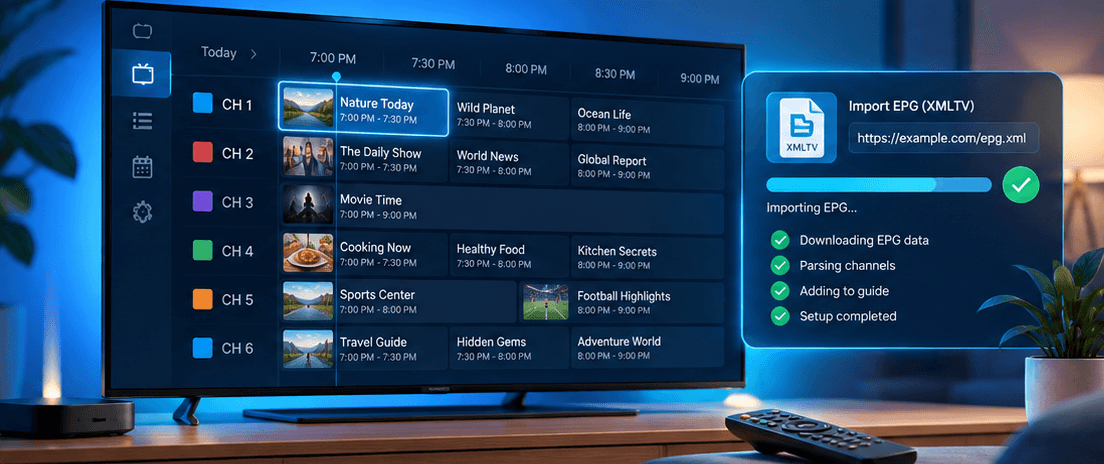
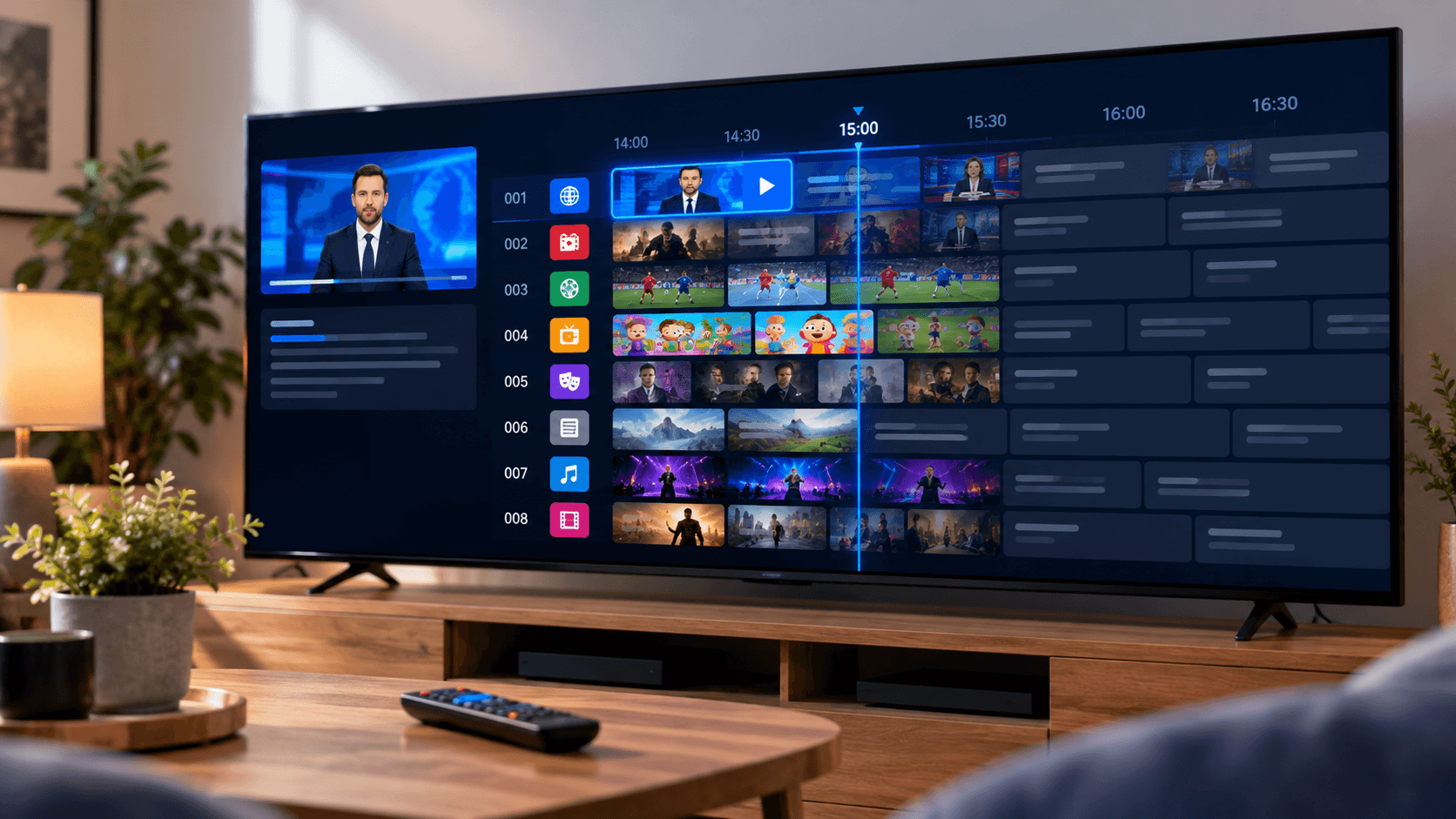
The electronic programme guide (EPG) is the TV guide inside your player app. For football it is far more useful than a fixtures website, because it shows exactly which channel is carrying which match, in your local time, right next to the live stream. Our explainer on what an EPG is in IPTV covers how it works in detail.
Three EPG habits make a big difference during the season. First, check the guide in the morning on a match day, so you know which channel to open before the build-up starts. Second, use the reminder or recording feature if your player has one; many apps let you set an alert a few minutes before kick-off. Third, refresh the guide once a day. Guide data only covers a limited window ahead, and fixtures are often moved for television, so an old guide can show the wrong time.
If the guide is empty or shows the wrong programmes against your channels, the guide link usually needs updating in the app. Our step-by-step guide to importing an EPG in IPTV Extreme shows the process, and the same idea applies in most other players.
Get a smooth, sharp picture
Football punishes a poorly set-up TV more than any other content. The ball moves fast across a large, mostly green area, so juddering, blur and blockiness show up immediately. Three areas matter most.
Check your internet speed
Measure the speed on the device you watch on, not on your phone, using a site such as fast.com. As a rough guide, each live stream needs about:
- HD (720p): around 5 Mbps
- Full HD (1080p): around 8–10 Mbps
- 4K: around 25 Mbps
Leave some headroom on top of these figures, especially if other people in the house are streaming or gaming during the match. It is also worth knowing that most football is still produced in HD rather than 4K. A clean, stable Full HD stream almost always looks better than a 4K stream that keeps dropping in quality.
Match the frame rate
Football in Europe is broadcast at 50 frames per second. Many streaming devices output 60Hz by default, and converting 50fps to 60Hz causes a subtle, regular judder that is most visible when the camera pans to follow play. On Fire TV, turn on Match Original Frame Rate in the display settings. Many player apps also have an auto frame rate (AFR) option. With both enabled, the TV switches to 50Hz for football and panning becomes noticeably smoother.
Adjust your TV settings
Most TVs have a sport picture mode, but it often pushes brightness and colour too far, making the pitch look neon. Try the standard or cinema mode instead and compare. Motion smoothing (called Auto Motion Plus on Samsung, TruMotion on LG and Motionflow on Sony) is a matter of taste: a low setting can help with fast camera pans, while a high setting creates a smeared, artificial look. If your TV has a game mode, avoid it for football, as it switches off processing that improves broadcast pictures.
Stop buffering at the worst moment
The biggest matches attract the most viewers, so match days are when home networks and servers are under the most pressure. These fixes have the biggest effect:
- Use a wired connection. An Ethernet cable, or an Ethernet adapter for a streaming stick, removes most Wi-Fi problems at once.
- If you must use Wi-Fi, connect to the 5 GHz network and keep the router in the open, close to the TV.
- Pause big downloads, cloud backups and console updates during the match.
- Increase the buffer size in your player settings if it offers one. A slightly larger buffer absorbs short drops in speed.
- Restart the router and the streaming device a few hours before a big game, not at half-time.
If a stream still freezes, our full guide to fixing IPTV buffering works through twelve fixes in a logical order, from a 30-second restart to DNS and player settings.
Reduce delay and avoid spoilers
Every live stream runs slightly behind the real action. Depending on the source and your player, the delay can be anything from a few seconds to over a minute. That matters most when your phone, a neighbour or the group chat reacts to a goal before you have seen it.
You cannot remove the delay completely, but you can stop it spoiling the match. Mute score notifications from sports apps and betting apps while you watch. Keep the player buffer at a sensible size: a very large buffer adds extra delay on top of the stream itself. If you watch with friends in different homes, agree to message only after the replay, not the moment the ball goes in.
Watch several matches at once
With all league-phase games on the final Champions League matchday kicking off together, and full rounds of domestic fixtures at the same time, many fans want more than one match on the go. There are two ways to do it.
On one screen
Some player apps offer a multi-view mode that shows two or four channels on the same screen. It needs a capable device and a fast connection, since each tile is a separate stream, so check the speed figures above and multiply them. Multi-view works best on a recent streaming box or a powerful Android TV device rather than an entry-level stick.
On several devices
The simpler option is a match on the TV and another on a tablet or laptop. Each stream playing at the same time uses one connection on your subscription, so two screens need a plan with two connections. Our multiple connections page explains how connections work and helps you choose the right number for your household.
Catch-up and highlights
Not every match fits your schedule. Many channels support catch-up TV, which lets you go back in the programme guide and play a match that has already been shown, usually for a limited number of days. Look for a catch-up or archive icon next to the channel in your player. If you plan to watch a match later, start it from the guide rather than from the live channel, and avoid score apps until you have seen it.
Your match-day checklist
Run through this list before any big game and most problems are solved before kick-off:
- Router and streaming device restarted earlier in the day
- Player app updated and the guide refreshed
- Match channel and a backup saved in favourites
- Wired connection or 5 GHz Wi-Fi in use
- Downloads and updates paused on other devices
- Frame rate matching switched on
- Score notifications muted
Conclusion
Watching football on IPTV is at its best when the boring part is done in advance. Organise your channels, trust the programme guide for kick-off times, set your TV to 50Hz, use a wired connection where you can and keep a backup channel one click away. Do that and the only thing left to worry about on match day is the result.
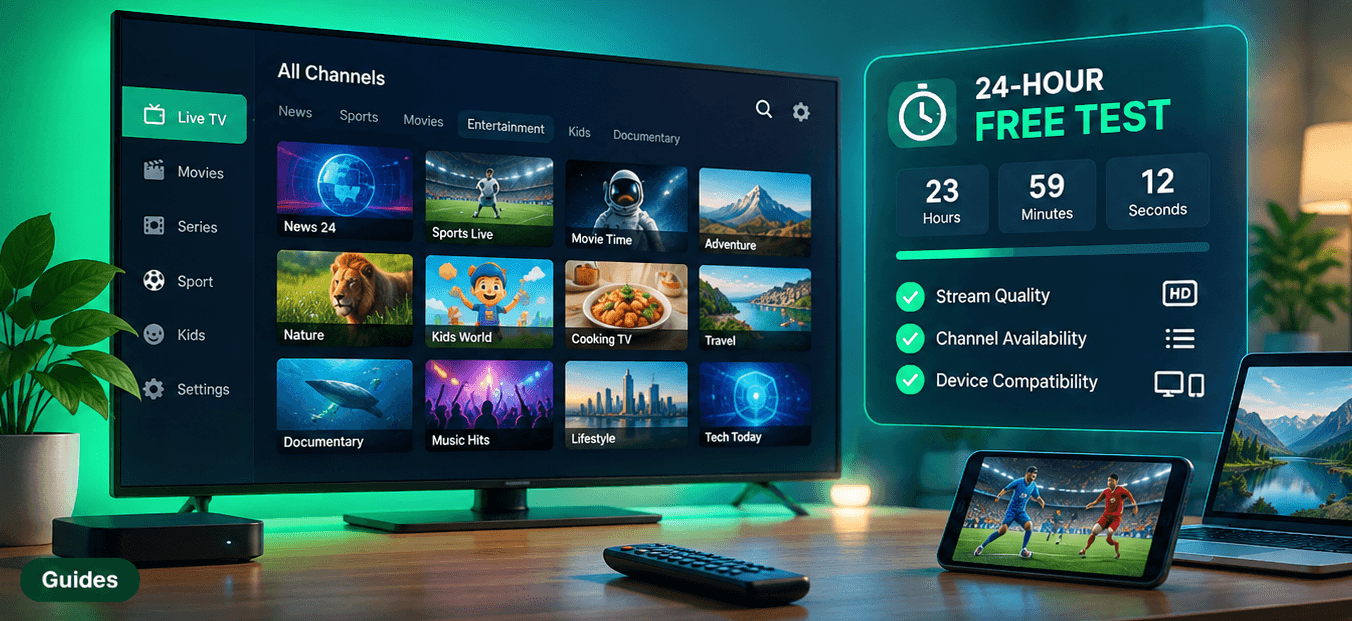
Not sure whether a service can handle a busy match night? Test it properly first with our 24-hour IPTV free test checklist, then request your free trial and try it on a real match before you choose a plan.
Frequently asked questions
What internet speed do I need to watch football on IPTV?
Around 8–10 Mbps per stream for Full HD and around 25 Mbps for 4K, plus headroom for other people in the house. Measure the speed on the device you watch on, not on your phone.
Why does football look jerky on my TV?
Usually because a 50fps broadcast is being shown at 60Hz. Turn on Match Original Frame Rate on Fire TV or the auto frame rate option in your player, and try a lower motion smoothing setting on the TV.
Why is my stream behind the live action?
Every live stream has some delay, from a few seconds to over a minute. Avoid an oversized player buffer and mute score notifications so other people and apps do not spoil goals for you.
Can I watch two matches at the same time?
Yes. Use a multi-view mode if your player and device support it, or watch on two devices. Two streams playing at once need a plan with at least two connections.
What should I do if a stream drops during a match?
Switch to the backup channel in your favourites first, then restart the app if needed. If the same channel keeps failing, report the channel name and time to support so the source can be checked.